
Badges Block
Welcome to .org Profile Badges
Profile Badges let you showcase your WordPress.org contributions on your website! Display your badges from WordPress.org profiles in beautiful, customizable layouts using the block editor.
{% hint style=”warning” %} This feature requires Dashicons to work. If you have a plugin that disables Dashicons, such as Perfmatters, please re-enable them. {% endhint %}
What Are Profile Badges?
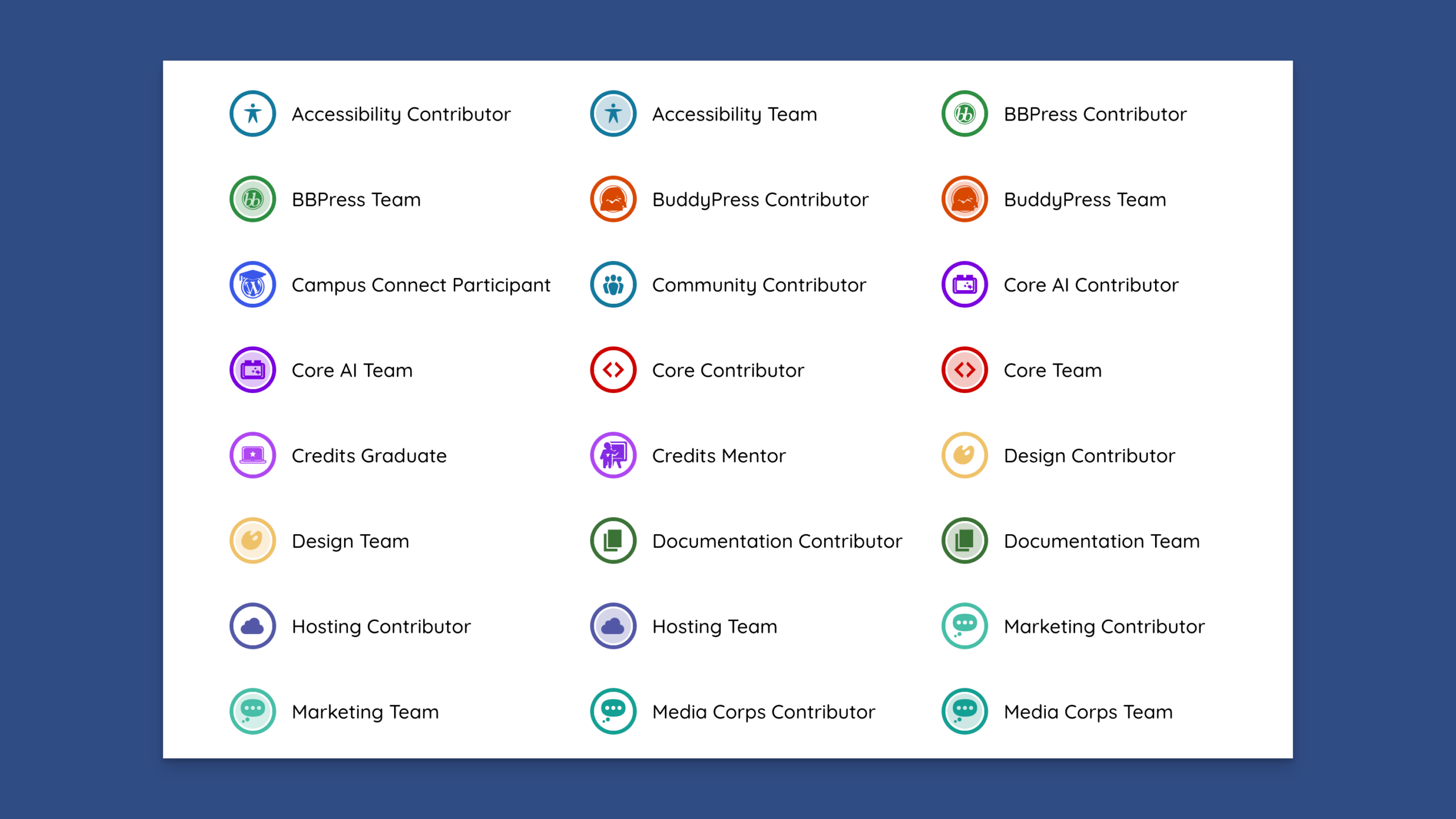
WordPress.org recognizes contributors with badges for their contributions to the WordPress project. These badges include:
- Core Contributor – For contributing to WordPress core
- Plugin Developer – For publishing plugins
- Theme Developer – For publishing themes
- Design Contributor – For design contributions
- Translation Contributor – For translation work
- And many more!
Getting Started
Profile Badges uses the WordPress block editor, providing a visual, drag-and-drop interface that makes it easy to add and customize your badges.
Using the Block Editor
Step 1: Add the Profile Badges Block
- In the WordPress block editor, click the + button to add a new block
- Search for “Profile Badges” or “Badges”
- Click on Profile Badges – Dynamic to insert the block

Step 2: Choose Your Badge Type
You’ll see two options in the block sidebar:
Option A: Custom Badges (Manual Selection)
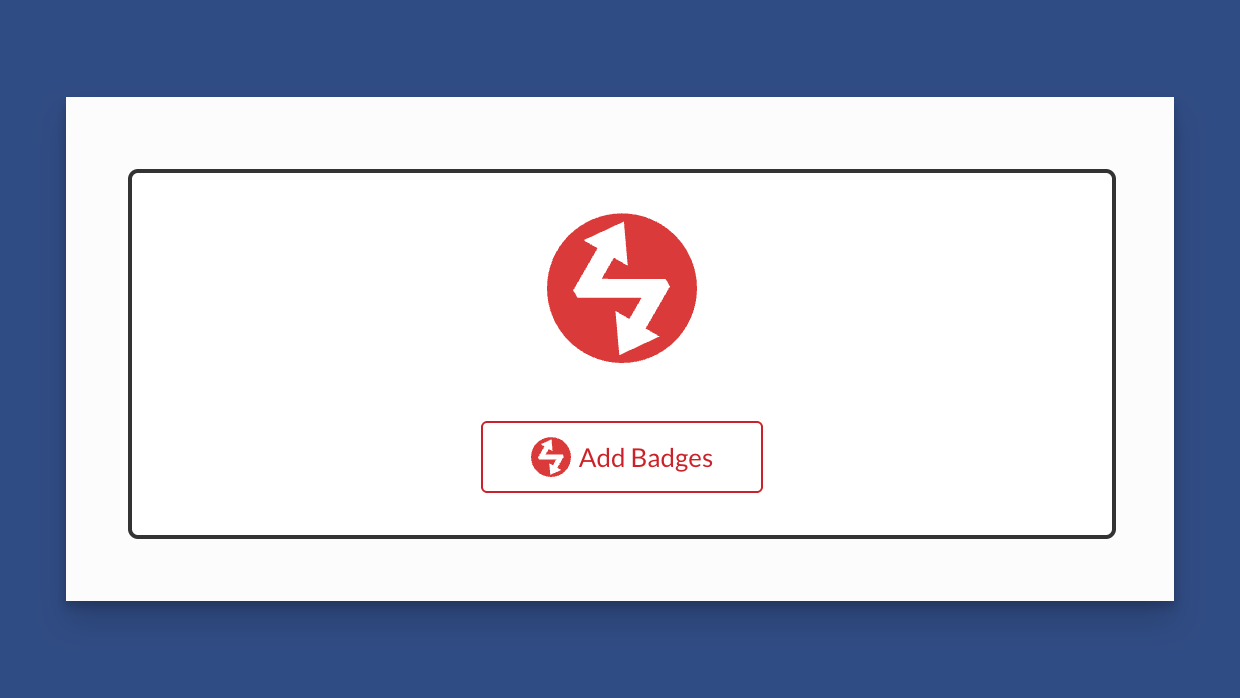
Select specific badges to display manually.
Option B: Dynamic Badges (Automatic from WordPress.org)
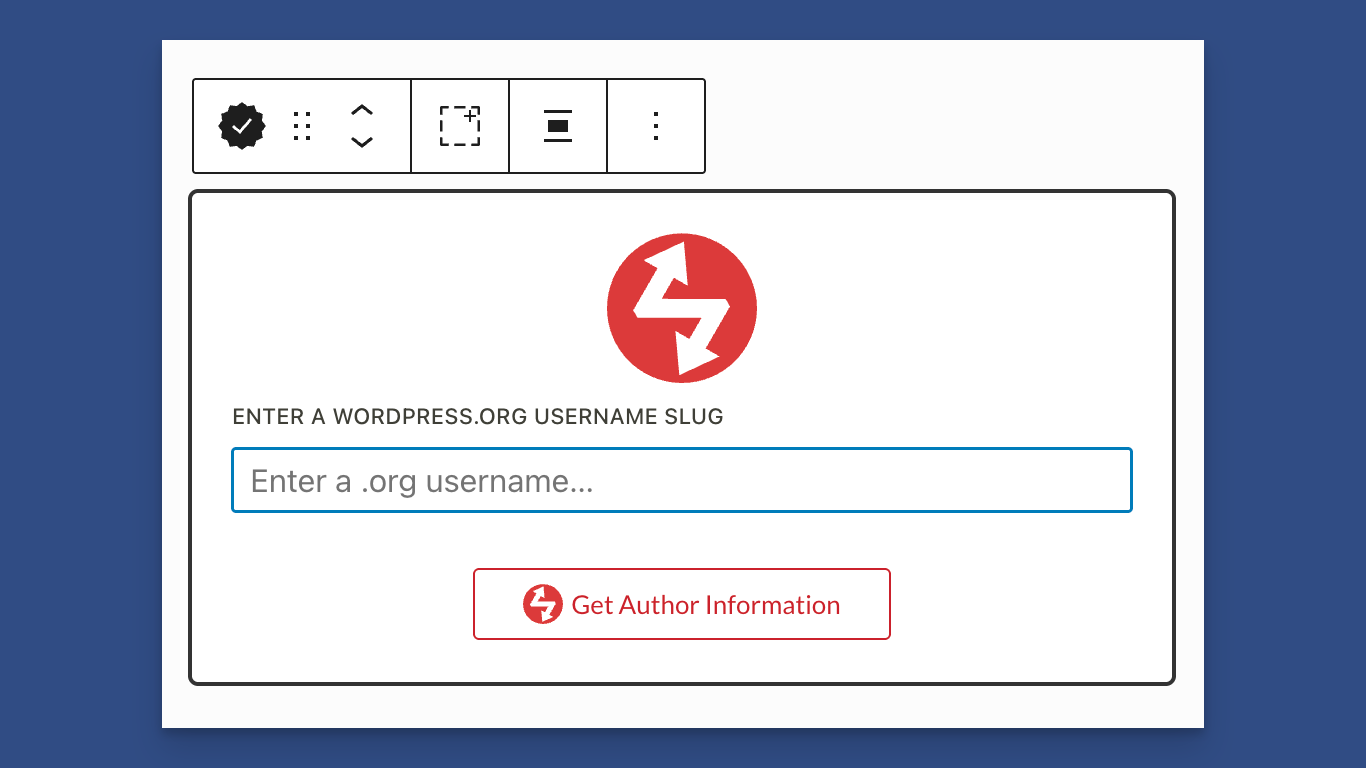
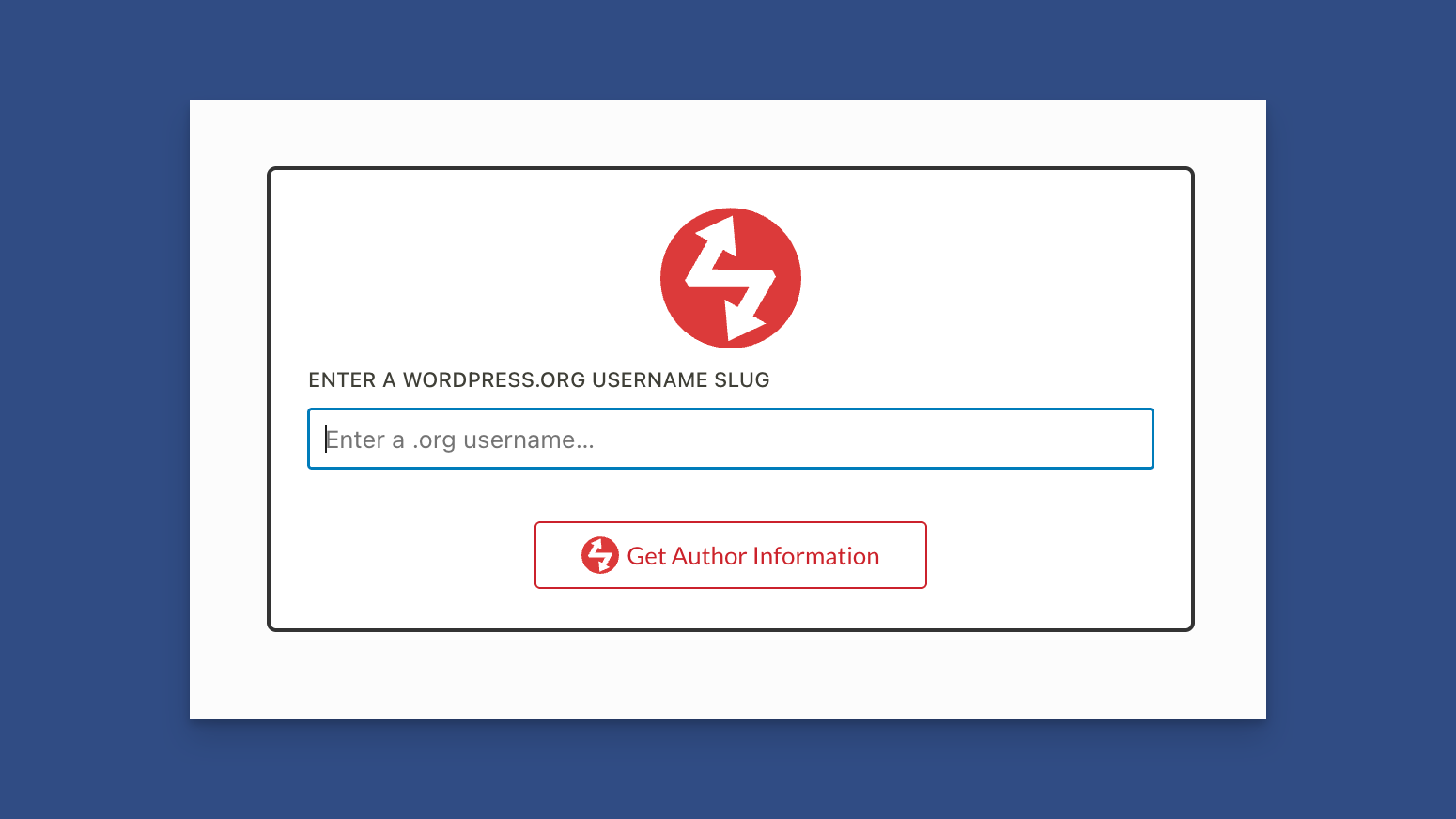
Automatically fetch badges from any WordPress.org profile.
Custom Badges – Step by Step
Selecting Your Badges
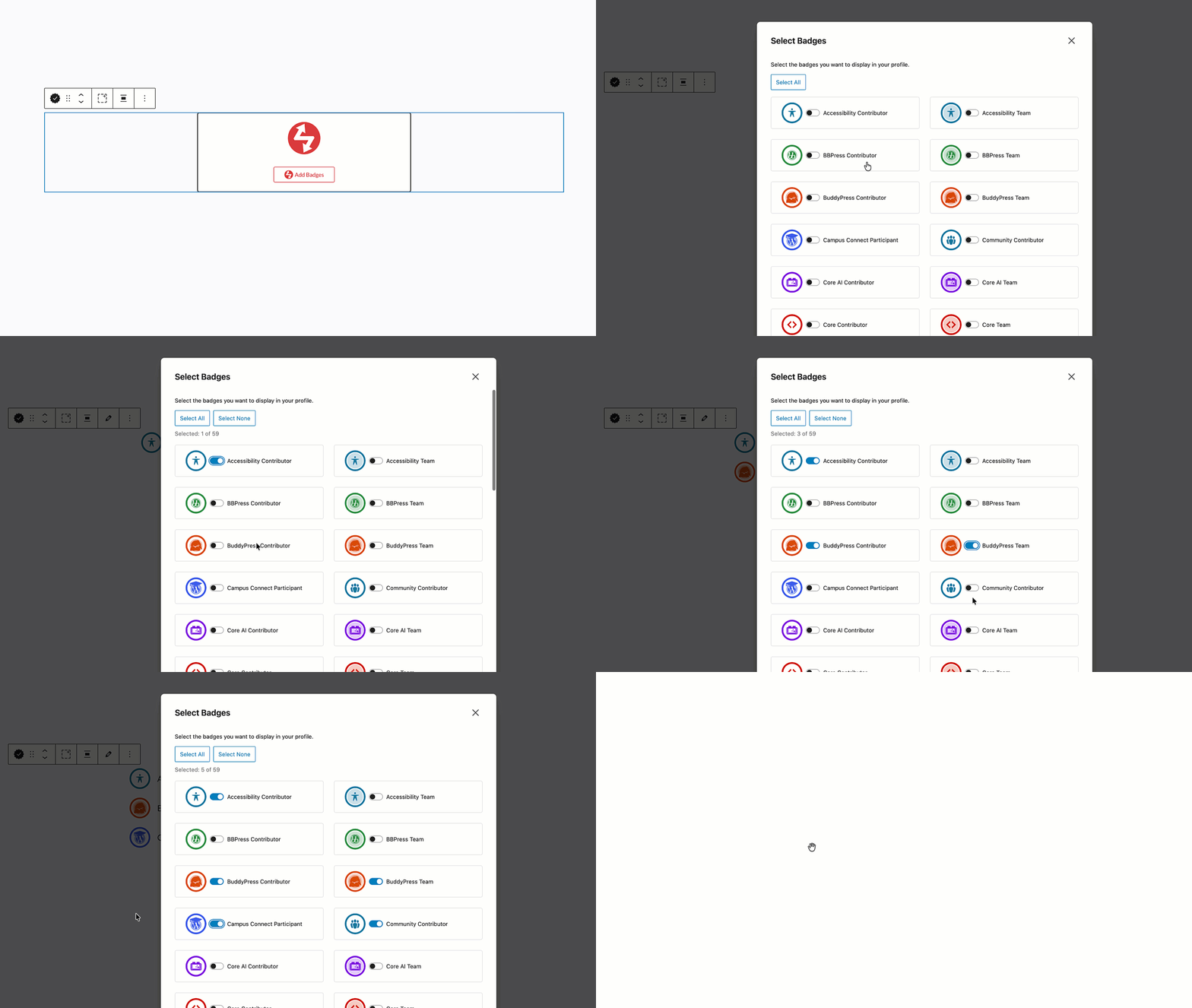
- With the block selected, click the Add Badges button or click Edit in the toolbar.
- A modal will open showing all available badges
- Click on badges to select/deselect them
- Use Select All or Select None for quick selection
- Click Save when done
Available Badges
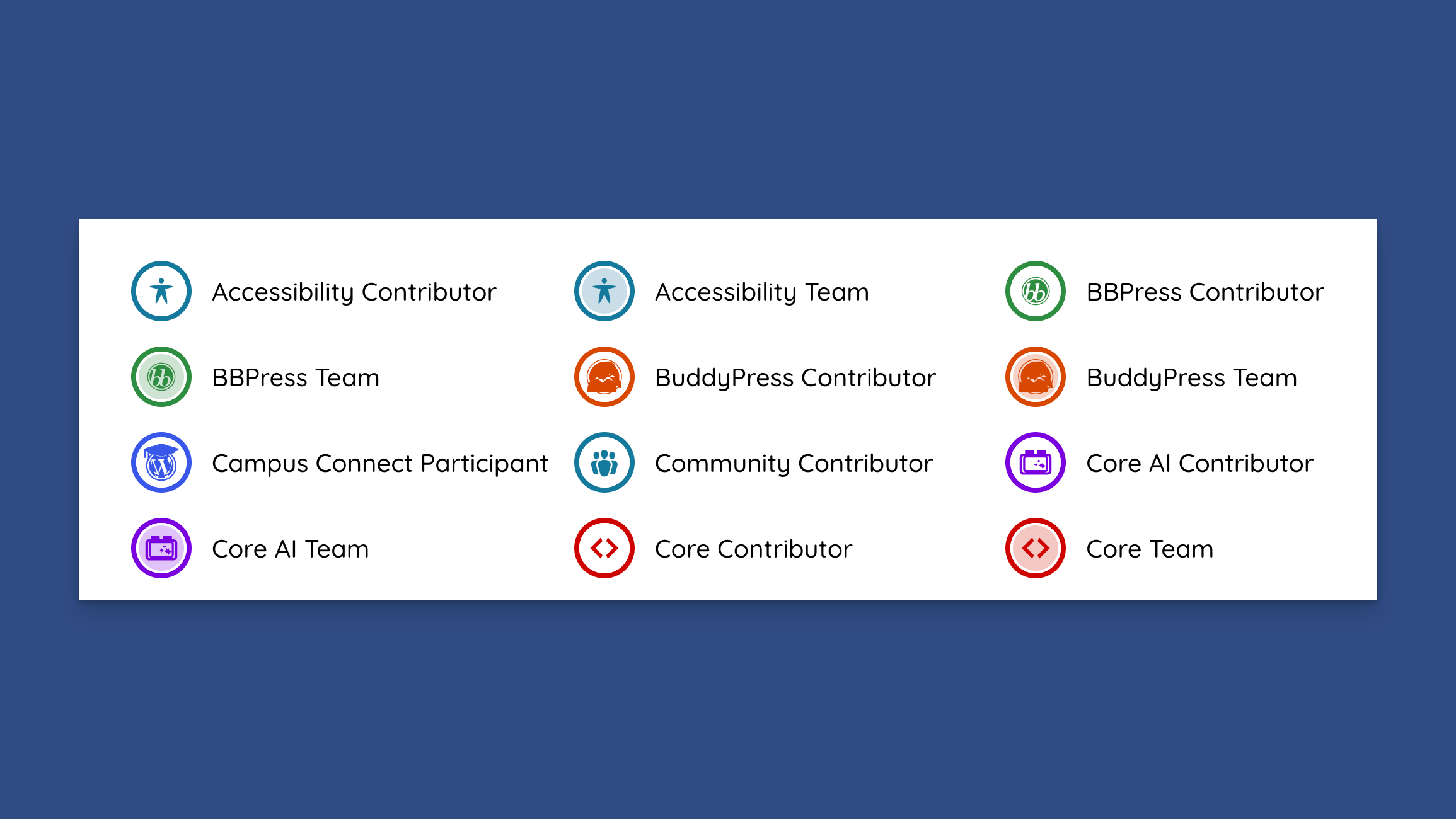
The badge selector shows all available WordPress.org badges organized by category. Each badge includes:
- Badge icon/visual
- Badge name/label
Dynamic Badges – Step by Step
Setting Up Dynamic Badges
- Select the Profile Badges block
- In the sidebar, choose Dynamic as the type
- Enter the WordPress.org Author Slug (username)
- The badges will automatically load from that profile
How Dynamic Badges Work
- Badges are automatically fetched from WordPress.org
- Data is cached for 14 days for performance
- A loading skeleton appears while fetching
- Badges update automatically when the cache expires

Finding Your Author Slug
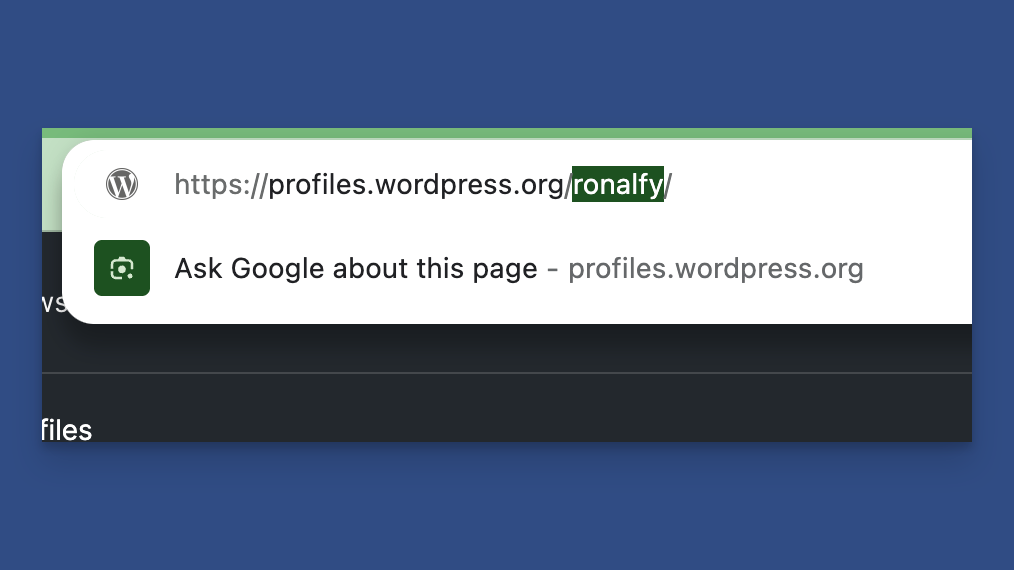
Your author slug is your WordPress.org username. You can find it in your profile URL:
- Profile URL:
https://profiles.wordpress.org/your-username/ - Author Slug:
your-username
Layout Options
Profile Badges offers two robust layout systems: Grid and Flex.
Grid Layout (Structured Columns)
Grid layout provides structured, column-based layouts perfect for organized displays.
Features:
- Fixed column count (1, 2, or 3 columns)
- Consistent spacing
- Perfect alignment
- Best for: Showcasing specific badges in an organized way
Setting Up Grid Layout:
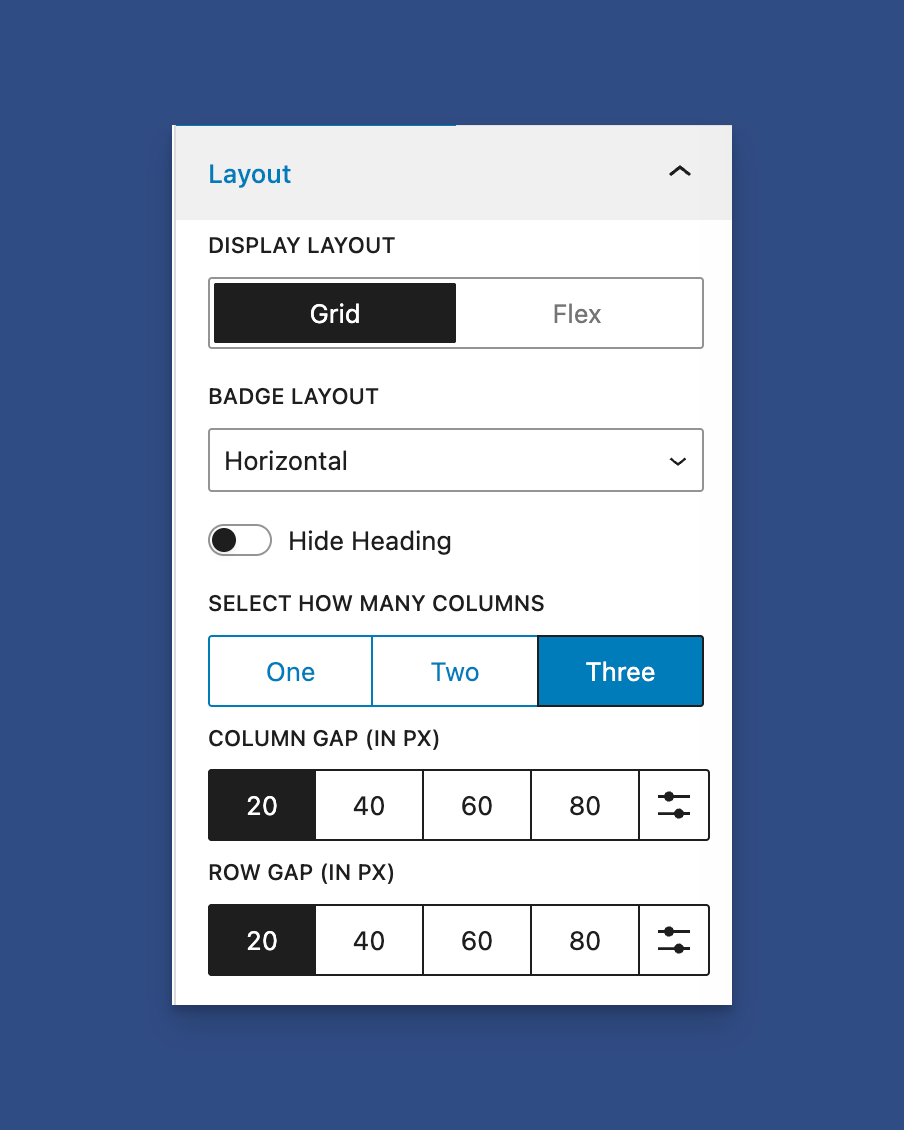
- In the block sidebar, ensure Display Layout is set to Grid
- Choose your column count (1, 2, or 3)
- Adjust column and row gaps as needed
Flex Layout (Fluid Wrapping)
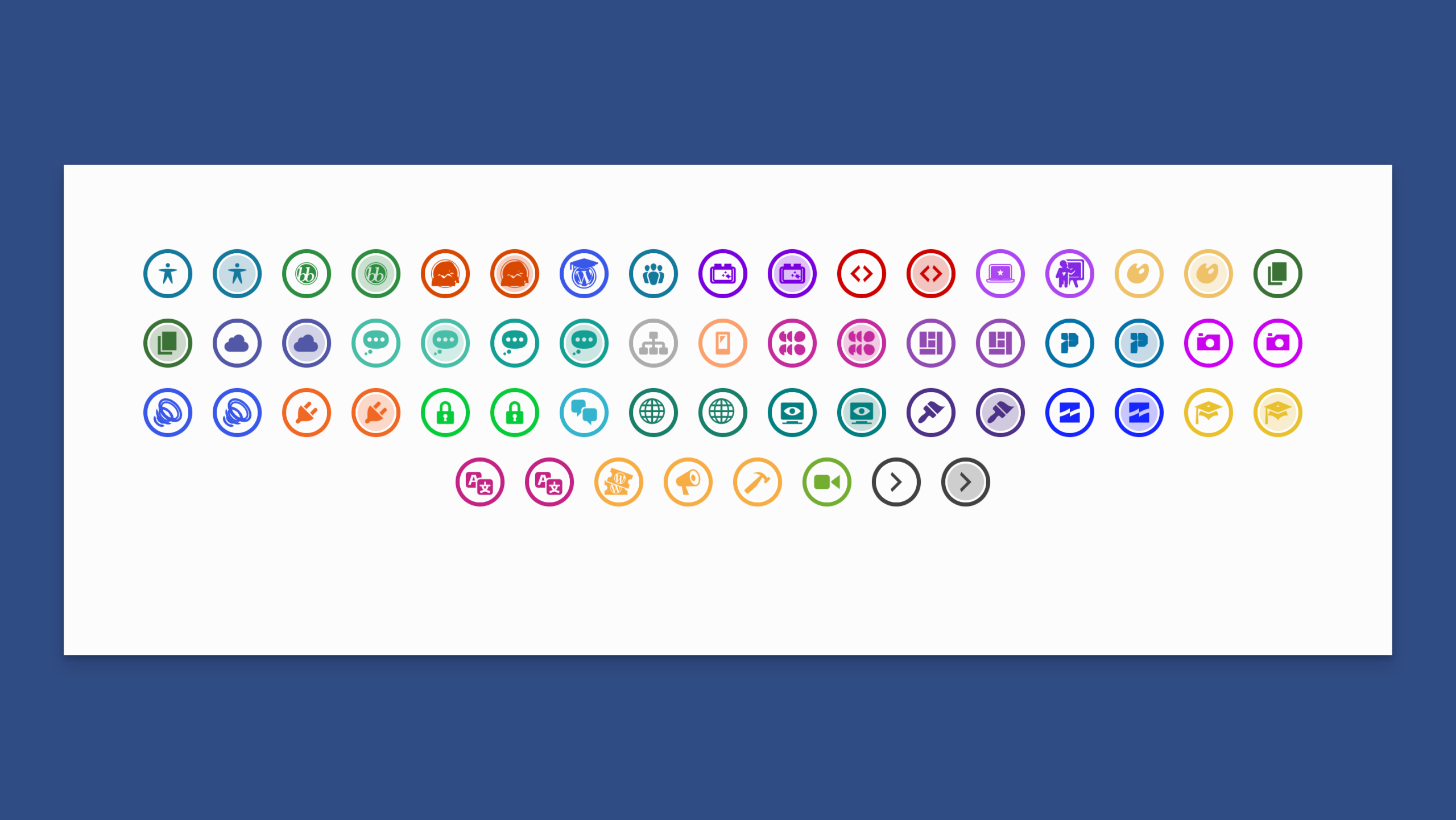
Flex layout provides fluid, responsive layouts that adapt to the width of your container.
Features:
- Badges wrap naturally based on available space
- Responsive to container width
- No fixed column count
- Best for: Responsive designs and varying content widths
Setting Up Flex Layout:
- In the block sidebar, set Display Layout to Flex
- Column controls are hidden (not needed for flex)
- Adjust gap spacing for your desired look
Grid vs. Flex: Which Should I Use?
Use Grid when:
- You want a structured, organized look
- You need consistent column alignment
- You’re displaying a specific number of badges
Use Flex when:
- You want responsive, fluid layouts
- Your container width varies
- You want badges to wrap naturally
- You want icons only to display
Customization Options
Badge Item Layout
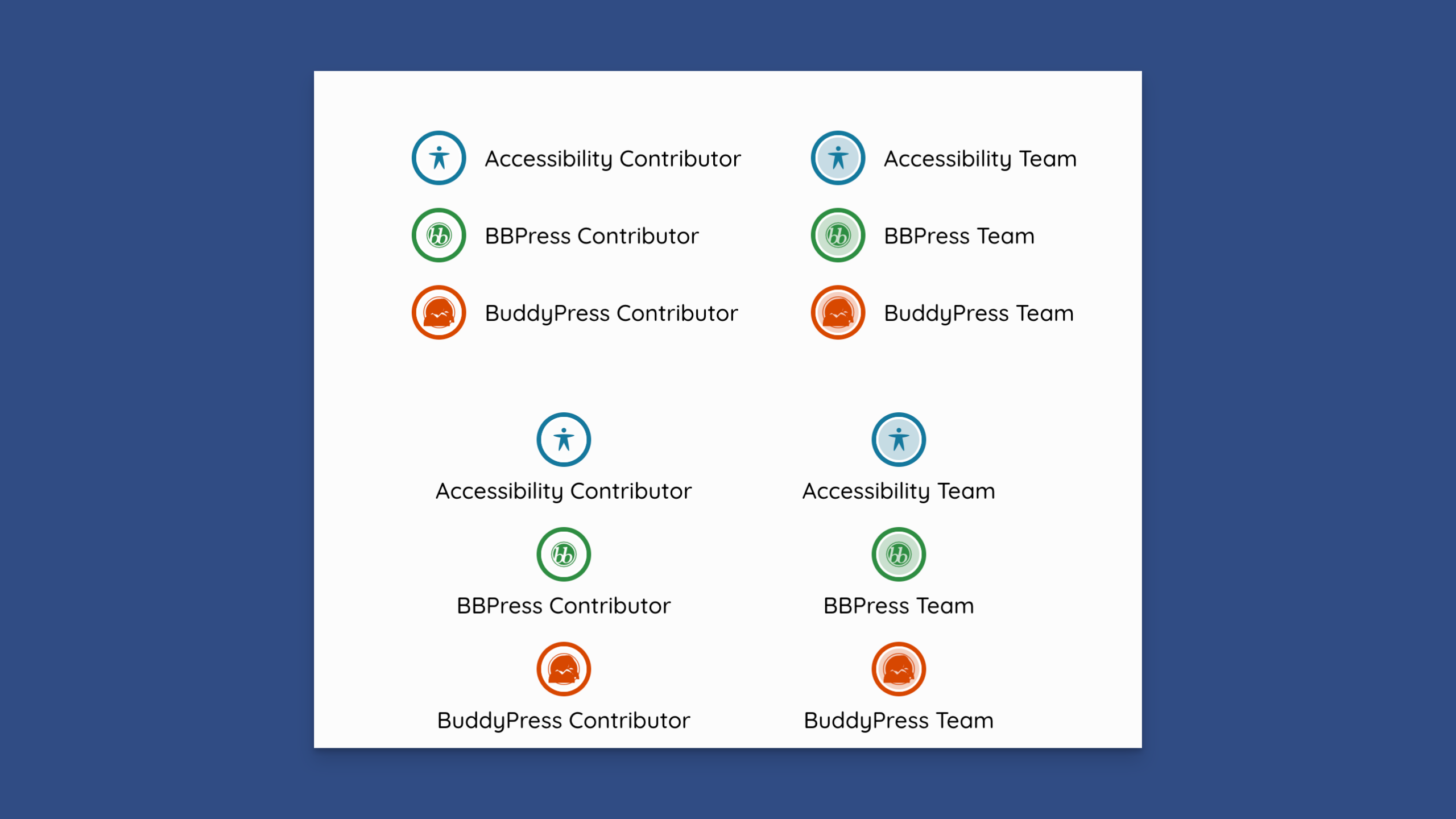
Control how each badge item is displayed:
- Horizontal – Badge icon and title side by side
- Centered – Badge icon centered above the title
Alignment
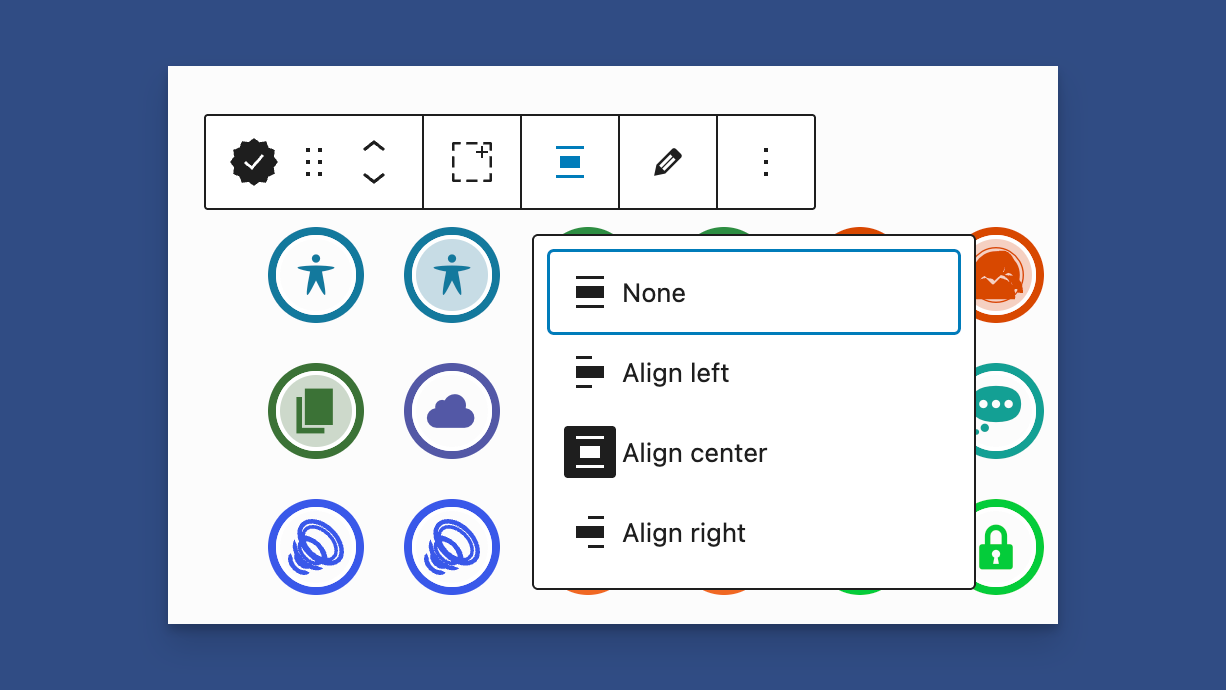
Control the overall alignment of your badge grid:
- Left – Align badges to the left
- Center – Center badges (default)
- Right – Align badges to the right
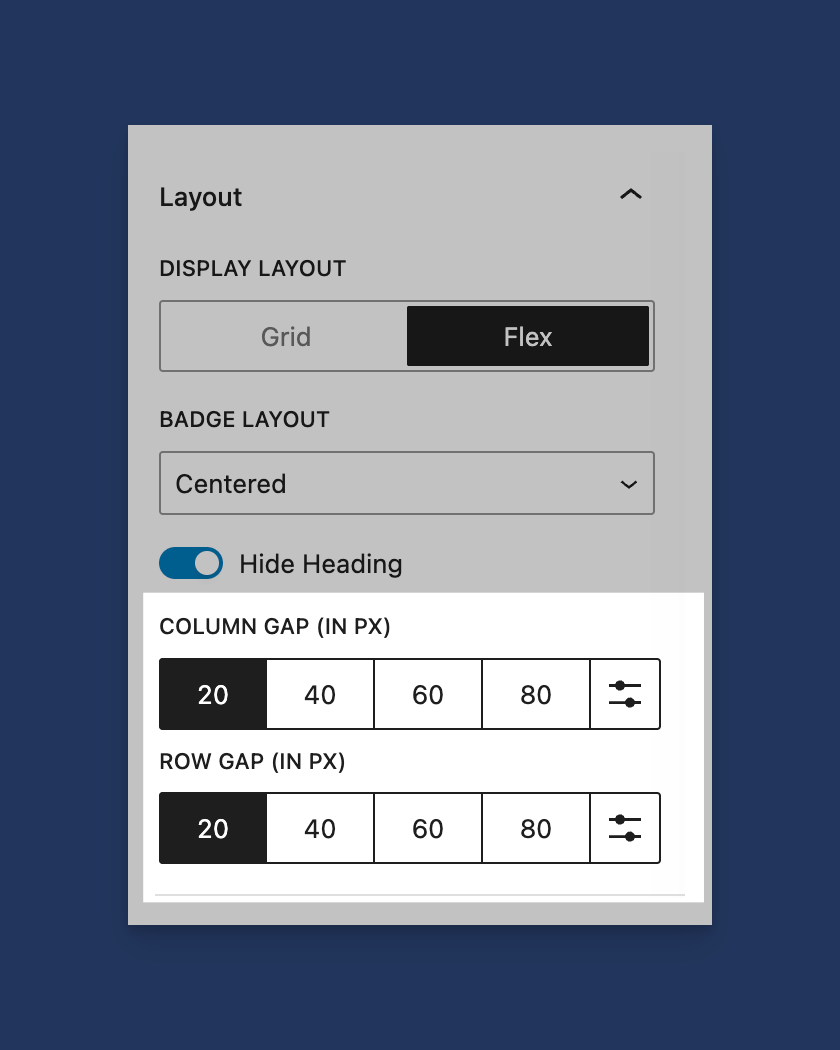
Spacing Controls
Fine-tune the spacing between badges:
- Column Gap – Horizontal spacing between badges (default: 20px)
- Row Gap – Vertical spacing between badge rows (default: 20px)
Styling Options
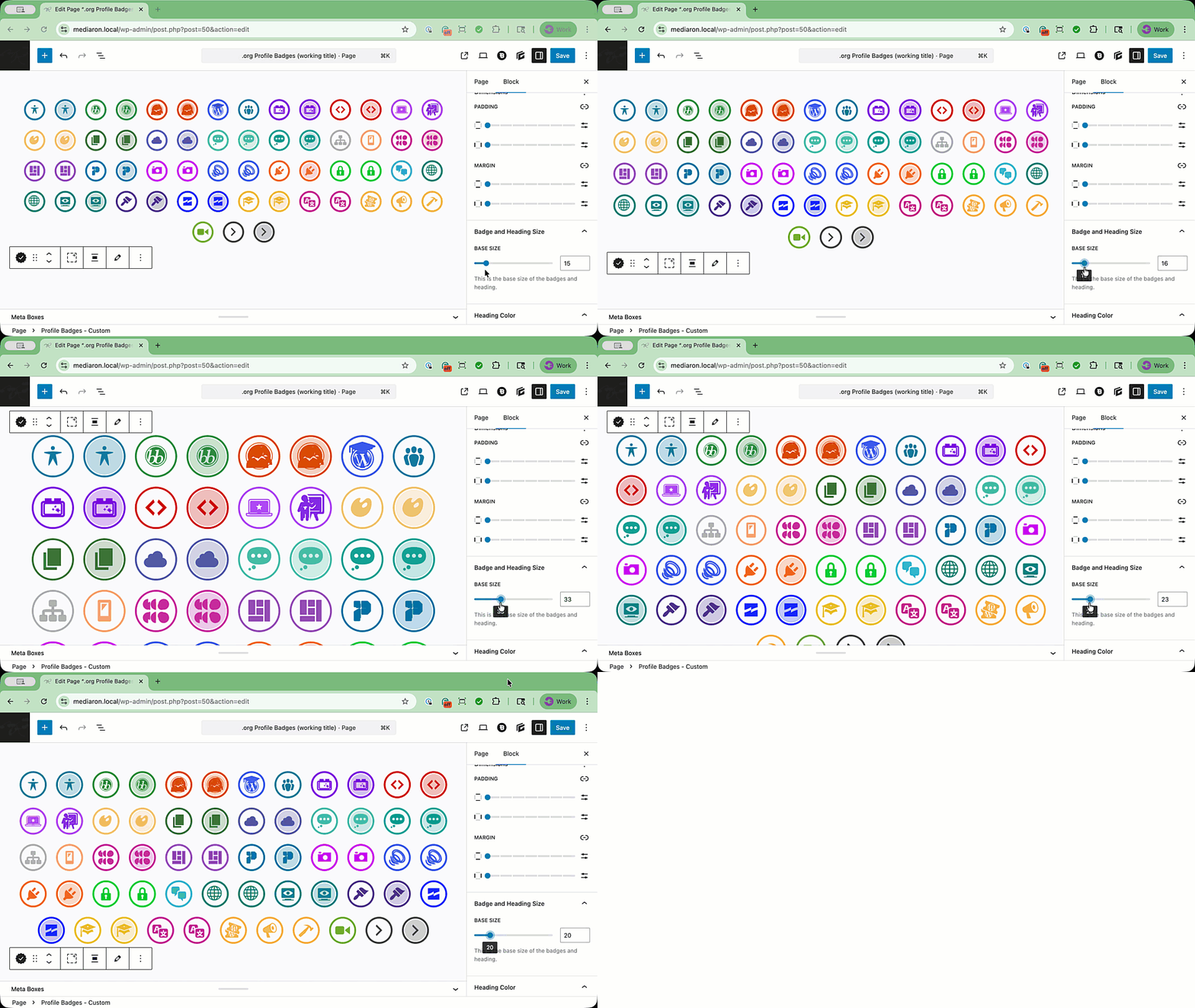
Base Font Size:
- Control the overall size of badges (default: 16px)
- Larger values = bigger badges
Heading Color:
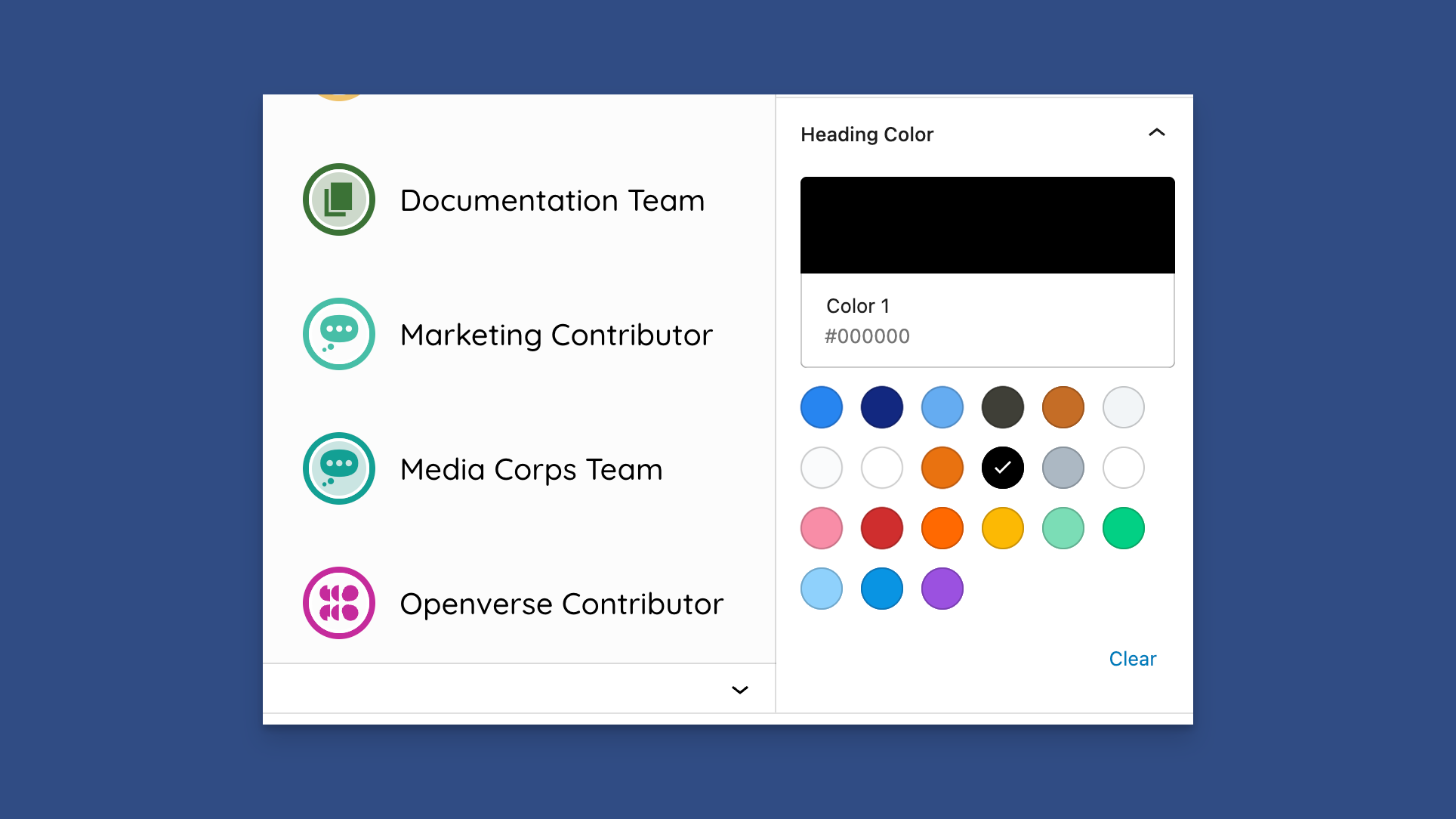
- Customize the color of badge titles
- Use hex color codes (e.g., #1e73be)
Hide Heading:
- Toggle to hide badge titles for a cleaner, icon-only display
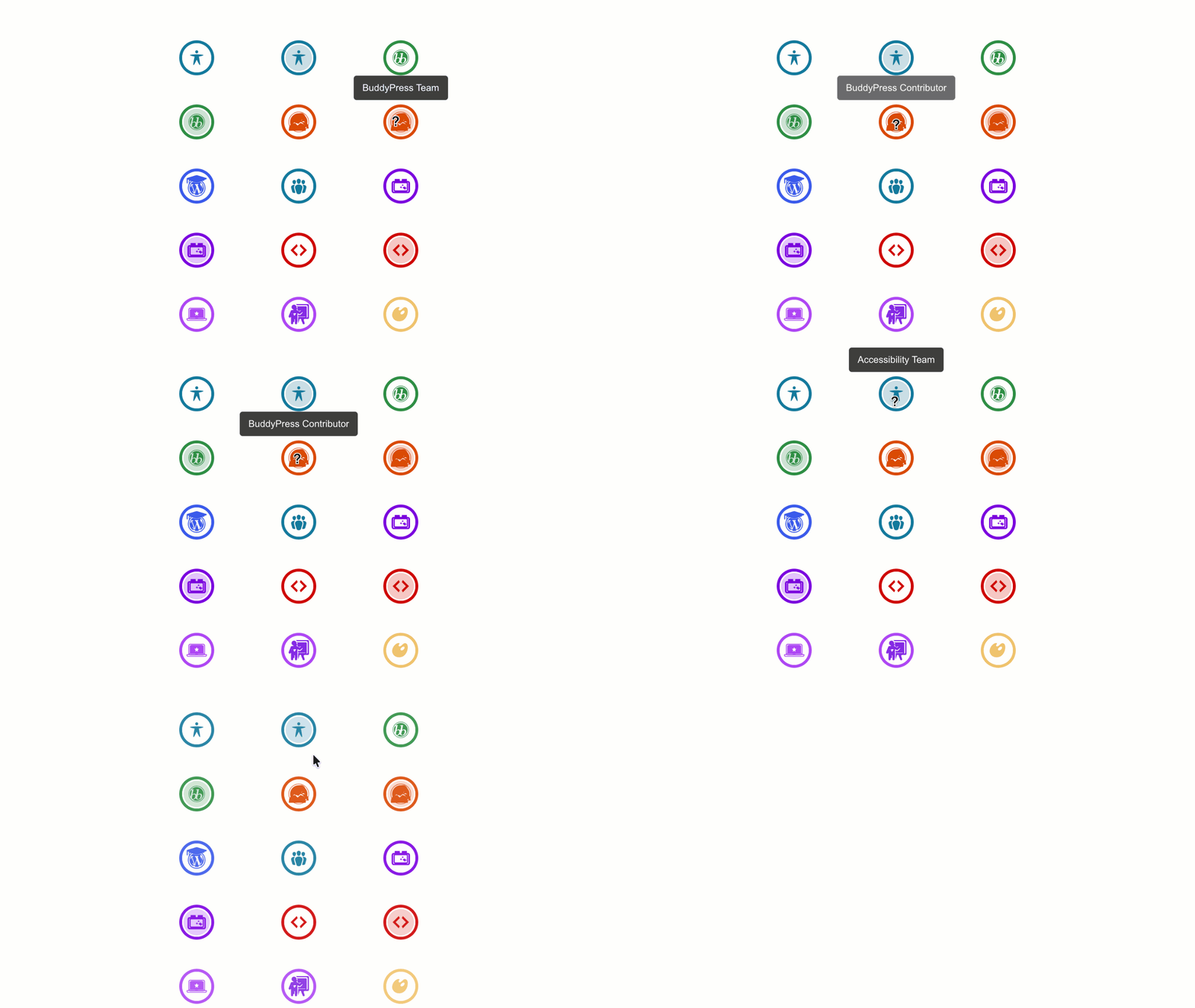
- Tooltips appear on hover when headings are hidden
Common Use Cases
Showcase Your Contributions
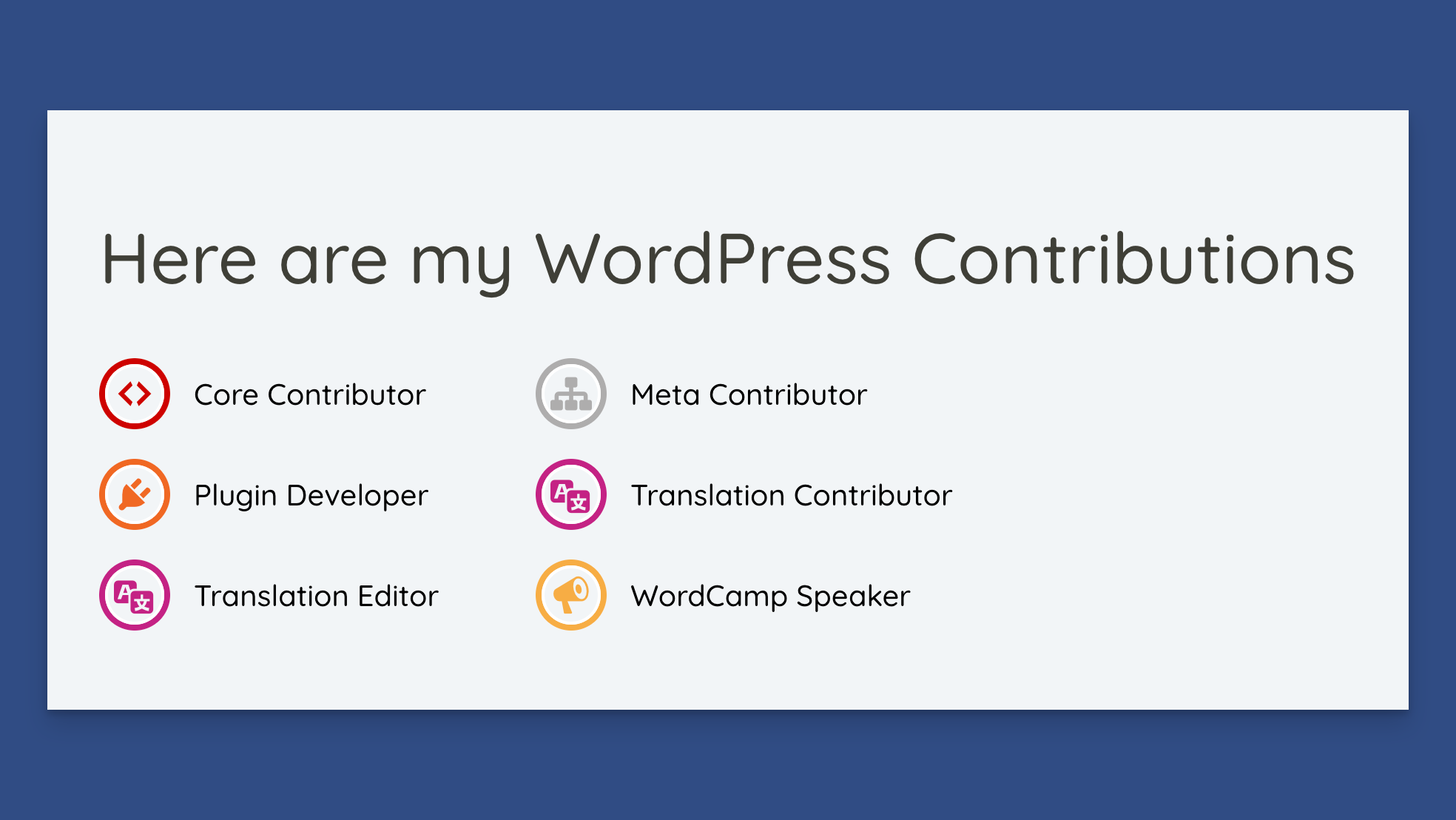
Display your WordPress.org badges on your personal website or portfolio.
Steps:
- Add Profile Badges block
- Choose Dynamic type
- Enter your WordPress.org username
- Customize layout and styling
Highlight Team Members
Show badges for team members or contributors.
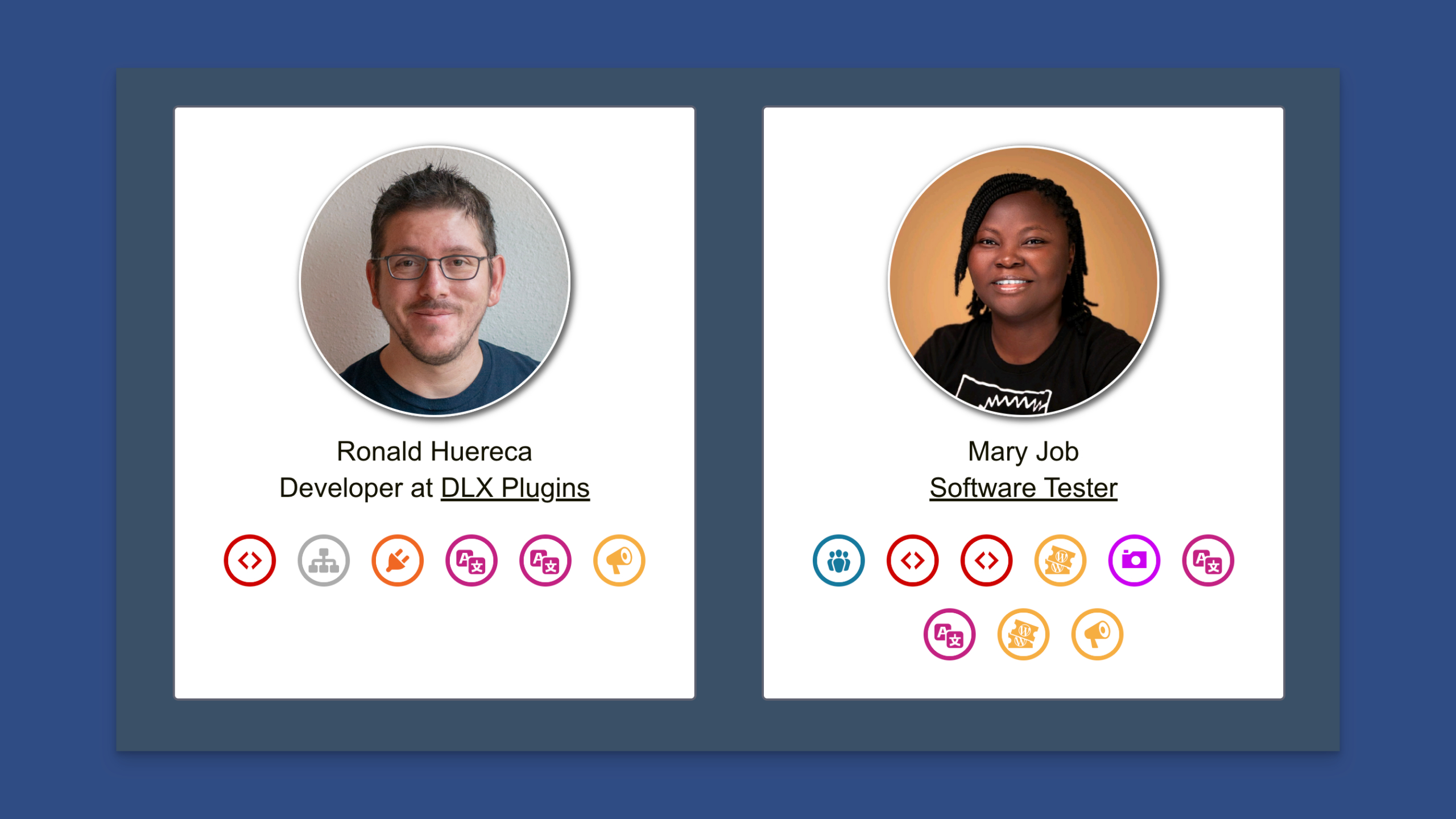
Steps:
- Add Profile Badges block
- Choose Static type
- Select relevant badges
- Use a grid layout with 2-3 columns
Minimal Badge Display
Create a clean, icon-only badge display.
Steps:
- Add Profile Badges block
- Select your badges
- Toggle “Hide Heading” on
- Adjust spacing for a tight layout
Responsive Badge Gallery
Use a flex layout for badges that adapt to any screen size.
Steps:
- Add Profile Badges block
- Set Display Layout to Flex
- Adjust gap spacing
- Badges will wrap naturally on all devices
Tips and Best Practices
Badge Selection Tips
- Quality over Quantity: Select badges that are most relevant to showcase
- Group Related Badges: Display related badges together (e.g., all design-related badges)
- Use Modifiers: Some badges include
has-overlaymodifier for special styling
Layout Tips
Grid Layout:
- Use 1 column for narrow spaces or single-column layouts
- Use 2-3 columns for wider areas
- Adjust gaps to match your site’s spacing
Flex Layout:
- Perfect for responsive designs
- Badges wrap naturally on mobile devices
- Adjust gap for consistent spacing
Performance Tips
- Static Badges: Load instantly (no API calls)
- Dynamic Badges: Use caching (14 days) for optimal performance
- Multiple Instances: You can use multiple badge blocks on the same page
Accessibility
Profile Badges include built-in accessibility features:
- ARIA labels for screen readers
- Semantic HTML structure
- Tooltips when headings are hidden
Troubleshooting
Badges Not Displaying
Problem: Badges don’t appear on the frontend.
Solutions:
- Check that badge names are spelled correctly
- For dynamic badges, verify the author slug is correct
- Clear your site cache
- Check the browser console for JavaScript errors
Layout Issues
Problem: Badges aren’t aligning correctly.
Solutions:
- Check column count (1, 2, or 3 for grid layout)
- Verify the container has sufficient width
- Check for CSS conflicts with your theme
- Try switching between grid and flex layouts
[image – Before/after comparison showing layout issues and fixes]
Dynamic Badges Not Loading
Problem: Dynamic badges show a loading skeleton but never load.
Solutions:
- Verify the author slug exists on WordPress.org
- Check network connectivity
- Clear the WP Plugin Info Card cache.
- Check if the WordPress REST API is accessible
Advanced Customization
Custom CSS
You can add custom CSS to further style your badges:
.wppic-badges-grid {
    /* Your custom styles */
}Code language: CSS (css)
Frequently Asked Questions
Can I display badges from multiple profiles?
Yes! You can add multiple Profile Badges blocks, each with a different author slug.
How often do dynamic badges update?
Dynamic badges are cached for 14 days. After that, they automatically refresh.
Can I customize badge colors?
Badge icons use their original WordPress.org colors. You can customize heading colors and overall sizing.
Do badges work on mobile?
Yes! Both grid and flex layouts are fully responsive and work great on mobile devices.
Can I use badges in widgets?
Yes! You can add the Profile Badges block to widget areas that support blocks, or use the shortcode in text widgets. See the shortcode documentation.
{% content-ref url=”../shortcodes/wp-pic-badges.md” %} wp-pic-badges.md {% endcontent-ref %}
 WP Plugin Info Card Query Block
 WP Plugin Info Card Block
 The GitHub Info Cards Block
 Site Plugins Card Grid
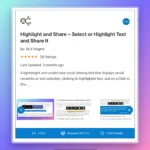 Plugin Screenshots Info Card